
 Support
 Contact
 Sign In



Message: "Your subscription only supports the use of one server"

Summary:
Some CSSB Subscriptions only allow back up of a single system. If you have such a plan and attempt to back up more than one system, backups will fail with an error that states “your subscription only supports the use of one server.”
If you have CSSB in use on more than one server on a single-server plan, then this error is expected. Please refer to Frequently Asked Questions Regarding Carbonite Safe Server Backup Single-Server Subscriptions for more information.
This article is intended to address false single-server errors.
This article applies to:
| Carbonite Plans | Products | Platforms |
| Power and Ultimate (Not sure?) | Carbonite Safe Server Backup (Not sure?) | Windows |
Solution:
If your backups fail with a false single-server error, please follow these steps.
Step 1: Ensure you are on the latest version of CSSB
- Please refer to Updating to the Latest Version of Carbonite Safe Server Backup
Step 2: Register the Server
Be sure to test a backup if you upgraded in Step 1 above. Upgrading to the latest version often resolves the issue.
If it is still failing, we must force CSSB to register the system by clicking the Transfer Subscription button. The Transfer Subscription button appears automatically in a popup whenever CSSB detects a discrepancy between the name of the registered system and the name of the current system. Clicking the button registers the current system as the authorized system on the customer's account.
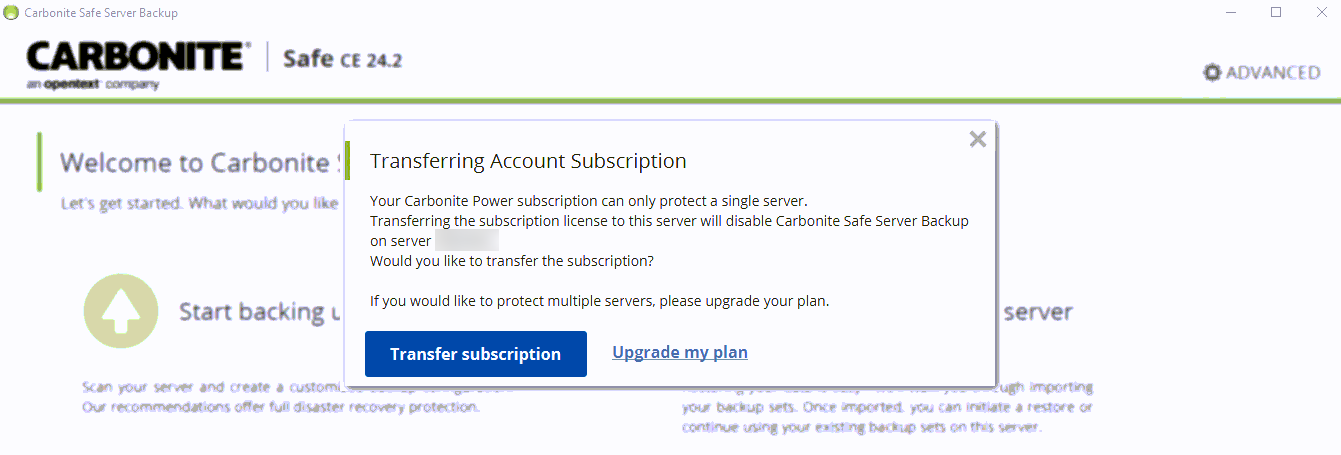
- Attempt a backup of any backup set.
- If the backup completes or begins to make progress, the issue is resolved.
- Perform the following steps one at a time until the Transfer Subscription button appears, you've used it, and you get a successful backup. The Transfer Subscription button may appear after any of these steps.
- Close/Re-open CSSB
- Attempt a backup if the Transfer Subscription button was used. If the backup completes or begins to make progress, the issue is resolved.
- Change any setting in any backup set, then save.
- Attempt a backup if the Transfer Subscription button was used. If the backup completes or begins to make progress, the issue is resolved.
- It is safe to revert the change (and save again) after your backup begins.
- Disable any backup set, then save. Enable the same backup set, then save.
- Attempt a backup if the Transfer Subscription button was used. If the backup completes or begins to make progress, the issue is resolved.
- Create a new backup set for testing purposes and save it. We recommend a file system backup set where a single, small file is selected.
- Attempt a backup to disk and cloud of this test backup set even if the transfer subscription button never appeared.
- If it still fails with single-server errors, please call Support for further assistance.
- If it is successful:
- Delete or Disable the test backup set.
- Test a backup of an existing backup set.
- If the backup completes or begins to make progress, the issue is resolved.
- Attempt a backup to disk and cloud of this test backup set even if the transfer subscription button never appeared.
- Close/Re-open CSSB
 Feedback