
 Support
 Contact
 Sign In



The Carbonite User Interface (Mac 2x)

Summary:
You can use the Carbonite User Interface. The Carbonite User Interface is useful for backing up files and folders, restoring files and folders, and checking the backup status of files and folders. To start, first open the Carbonite InfoCenter by following the instructions below.
This article applies to:
| Carbonite Plans | Products | Platform | Version |
| Basic, Plus, Prime, Core, Power, and Ultimate (Not sure?) | Safe, Safe Pro (Not sure?) | Mac - View the Windows Article | 2.x (Not sure?) - View the 1.x article |
Solution:
Click the Carbonite icon in the menu bar and select Open Carbonite to open the Carbonite User Interface.
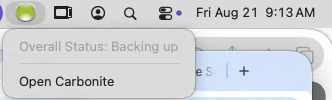
You will see the Carbonite User Interface displayed. If you are running a trial version of Carbonite on your Mac, you will be able to upgrade it to a paid version of Carbonite through the Buy Now button on any tab. The Carbonite User Interface is separated into 5 pages: Home, Back Up, Restore, Account, and Help.
Please Note: Carbonite now has Dark Mode support. If your Appearance in System Preferences/Settings is set to Dark then the Carbonite app will also be set Dark Mode.
The Home page is where you can see the current backup size, most recent back up time, recently backed up items, enable/disable automatic backup settings, and Pause/Resume the backup.
The Back Up page is how you view and manage your backup selections as well as restoring select items.
The Restore page is the location for full restore options as well as being where you will see restore progress when there is an active restore.
The Account page shows information specifically tied to the installed version, along with subscription and account information
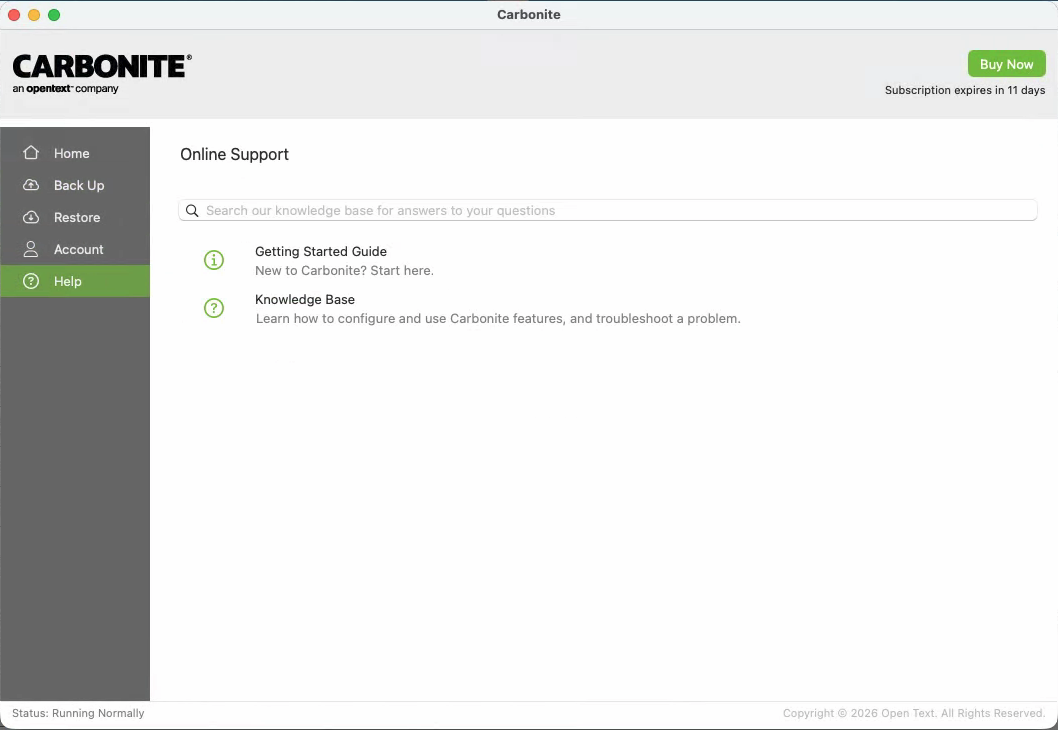
The Help page connects you with our Knowledgebase for questions and troubleshooting that you can perform.
Home
Within the Home tab, you will be able to tell the progress of your backup, stop/start Carbonite and see any files which were recently backed up.
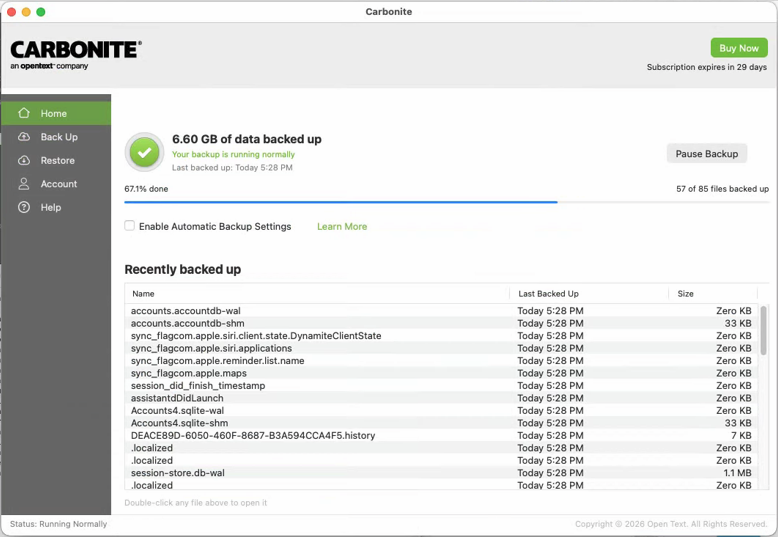
- Pause Backup - This button will stop Carbonite on your Mac which impacts both backup and restore.
- Start Backup - This button will start Carbonite on your Mac if it is stopped, resuming backup and/or restore.
- Backup Status - This is found beneath the backup size and will indicate the status of the current backup taking place.
- Recently Backed Up - Displays which files were recently backed up to Carbonite's servers.
Back Up
Within the Back Up tab, you can see the files that are selected for backup, their current status, backup size of files and folders, add new files/folders to the backup, search for files in the backup, and restore select files/folders.
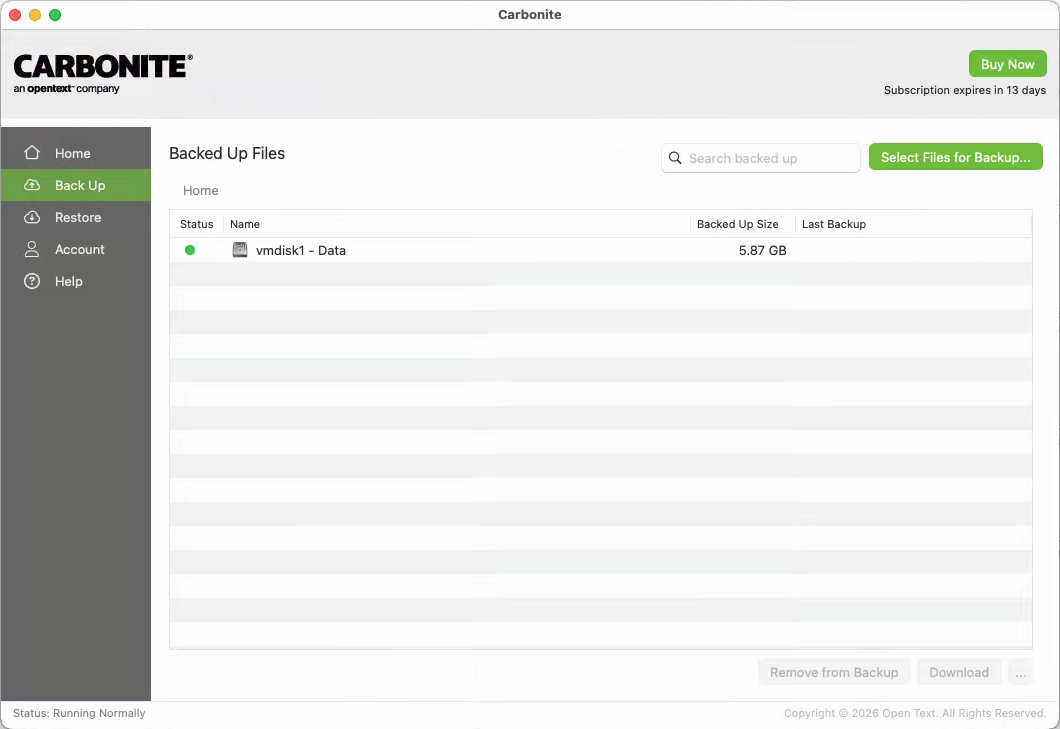
- Backed Up Files - This is the view to navigate and view the current backup state of selected files.
- Search backed up - This allows you to search for specific files in your backup. This can be used to quickly find files that are selected that you just want to verify the status on, or it can be used to locate files that were deleted/went missing that needs restore.
- Select Files for Backup... - This is how you add files/folders to the backup when they aren't showing within this tab.
- Remove from Backup - Once you have highlighted one or more files/folders that you don't want backed up you can press this button to remove those items from the backup
- Download - This is how you perform selective restores to original location. Clicking this button with a file/folder selected that is in a recoverable state will target a restore of the selected items back to their original location.
- ... - This button is for additional restore options.
- Download in place - This is the same as if just using the Download button
- Download specific version - This allows you to specify a specific date that you want to recover a file/folder from that also gives you the option to target a new location for that restore.
- Choose location... - This allows you to select a new location to restore selected files/folders
Restore
The Restore tab will let you restore all of your files to your computer.
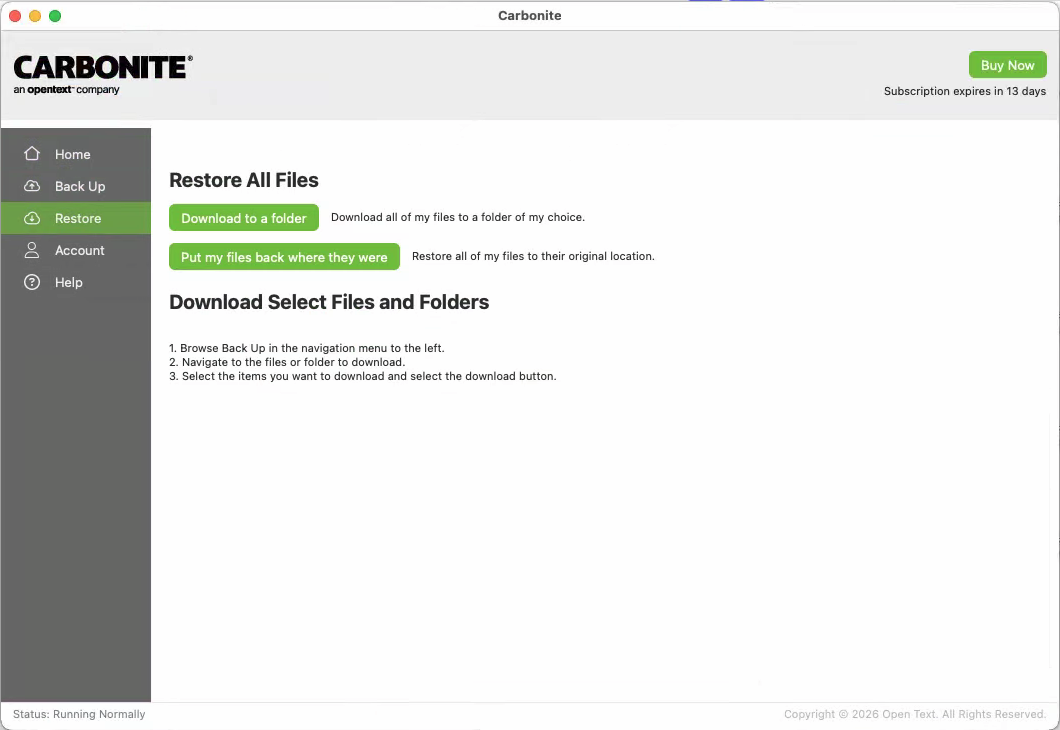
- Download to a folder - This will let you restore all of your files to a location of your choosing.
- Put my files back where they were - This will restore all of your files and folders to their original location on your computer.
Account
The Account tab displays information pertaining to the Carbonite subscription installed on the computer. It is broken up into two sections along with an Uninstall button.
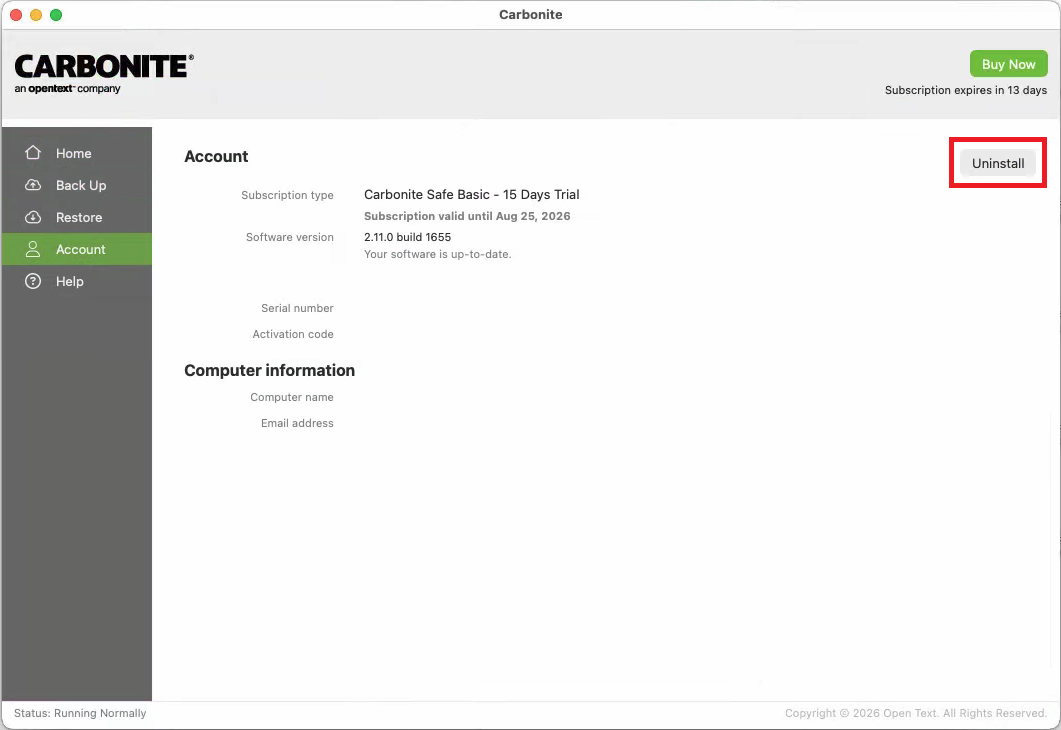
Account section
- Subscription type - Displays the current Carbonite Safe subscription as well as it's expiration date.
- Software Version - Dislays the version of the software you are currently running on your Mac. If there is an update available to the software, you will see an Upgrade button that you can click to update your software to the latest version.
- Serial Number - This is the serial number associated with your Carbonite software.
- Activation Code - This displays the activation code associated with your Carbonite subscription.
Computer information
- Computer name - You will see your computer name located here.
- Email address - This displays the email address associated with your Carbonite account.
Uninstall
You can use this button to uninstall Carbonite when needed
Help
The Help tab will let you search the Carbonite Knowledge base for assistance with any issues you are having.
 Feedback