
 Support
 Contact
 Sign In



Changing Your Customers Automatic Renewal Status

- This article is for Windows and Mac
Summary:
Automatic renewal is the process of using your credit card on file to automatically purchase a subscription for your customers. You can change your customers automatic renewal status at any time through your Portal.
Solution:
The sections below are collapsed. Please click the section title to open / close a particular section.
If your customer is currently not enrolled in automatic renewal, you will have the option to enable that feature within your Portal. When a customer's account is not enrolled in automatic renewal, you will need to manually renew their subscription when it comes up for renewal.
Sign into your account at https://portal.carbonite.com.
Once signed in, click Manage my accounts within the Quick Links section for Carbonite Safe.

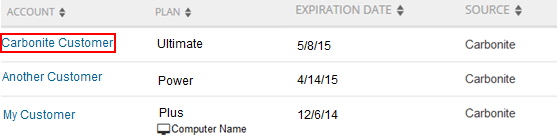
Then, click the Accounts tab to see a list of all of your customers' subscriptions and their expiration dates. Select the account you want to enable automatic renewal from the list.
Within the customer's account, click Enable Auto-renew.

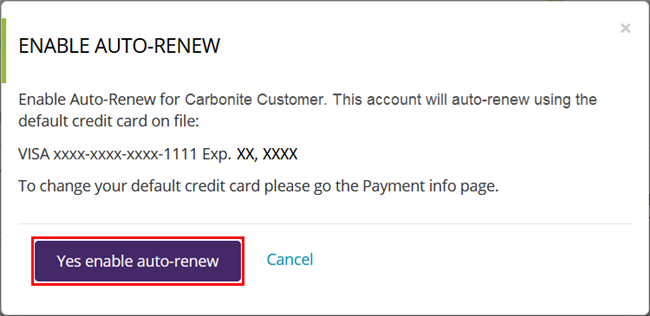
On the next screen, you will have the option to edit your payment information or use the current credit card on file (selected by default) for automatic renewal. To enroll your customer's subscription in automatic renewal, click the Enable auto-renew button.
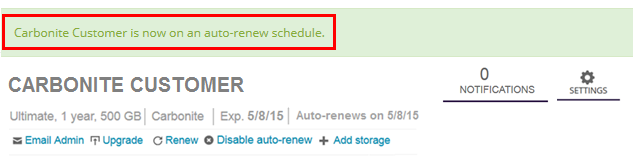
You will be re-directed to the customer's account page, where a notification message will appear confirming your enrollment in automatic renewal.
If your customer is currently enrolled in automatic renewal, it will be stated within your Portal. When a customer's account is enrolled in automatic renewal, their subscription will automatically be billed to the card on file when their subscription comes up for renewal.
Sign into your account at https://portal.carbonite.com.
Once signed in, click Manage my accounts within the Quick Links section for Carbonite Safe.
Then, click the Accounts tab to see a list of all of your customers' subscriptions and their expiration dates. Select the account you want to disable automatic renewal from the list.
Within the customer's account, click Disable Auto-renew.

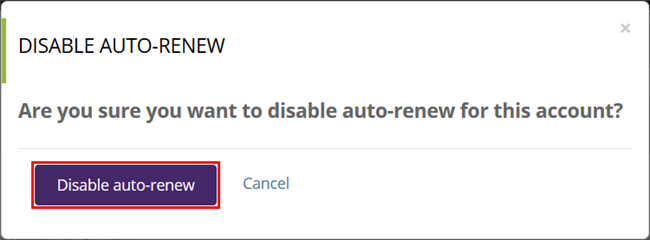
A Disable Auto-renew popup will appear. To unenroll your customer's subscription from automatic renewal, click the Disable auto-renew button.
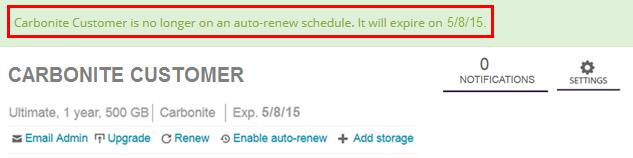
You will be re-directed to the customer's account page, where a notification message will appear confirming your unenrollment from automatic renewal. When your customer's subscription comes up for renewal, you will need to manually renew it.
 Feedback